Turning a web page into a book: pagination, page turns and fullscreen
My book is HTML. I wanted it to read like a book: real pages, a page turn, fullscreen that survives the next chapter, and a front page you can always get back to. How the reader measures pages in the browser, and what it costs.
The Sylang book lives on this site as plain HTML: seventeen chapters, one page each. That is the right format for search engines, screen readers, printing and links. It is the wrong format for reading a long technical book in one sitting. A scroll bar gives no sense of place, and an 8,000-word page is tiring.
So the site has two modes over the same HTML. Scroll is the default and is what search engines, printers and assistive technology get. Book turns the chapter into real pages with a page-turn effect, a page number and a running head. The source is the same. Only the presentation changes.
Pages are measured, not calculated
You cannot know in advance how many words fit on a page. It depends on the screen, the font size the reader picked, the figures and the boxes. So the reader measures.
- Create an invisible page at the real size.
- Start every section on a fresh page.
- Add blocks one at a time: paragraph, list, box, figure.
- After each block, check whether the page overflows.
- If it does, split the block, or move it to the next page.
Splitting is where the care goes. A paragraph is split at a word boundary using a binary search on word count, so a split takes a handful of measurements instead of hundreds. Lists split between items and keep their numbering. Boxes split inside their text and keep their style on the continuation page, without repeating the title. Anything that would leave fewer than six words behind moves whole instead, so no page ends on an orphaned fragment.
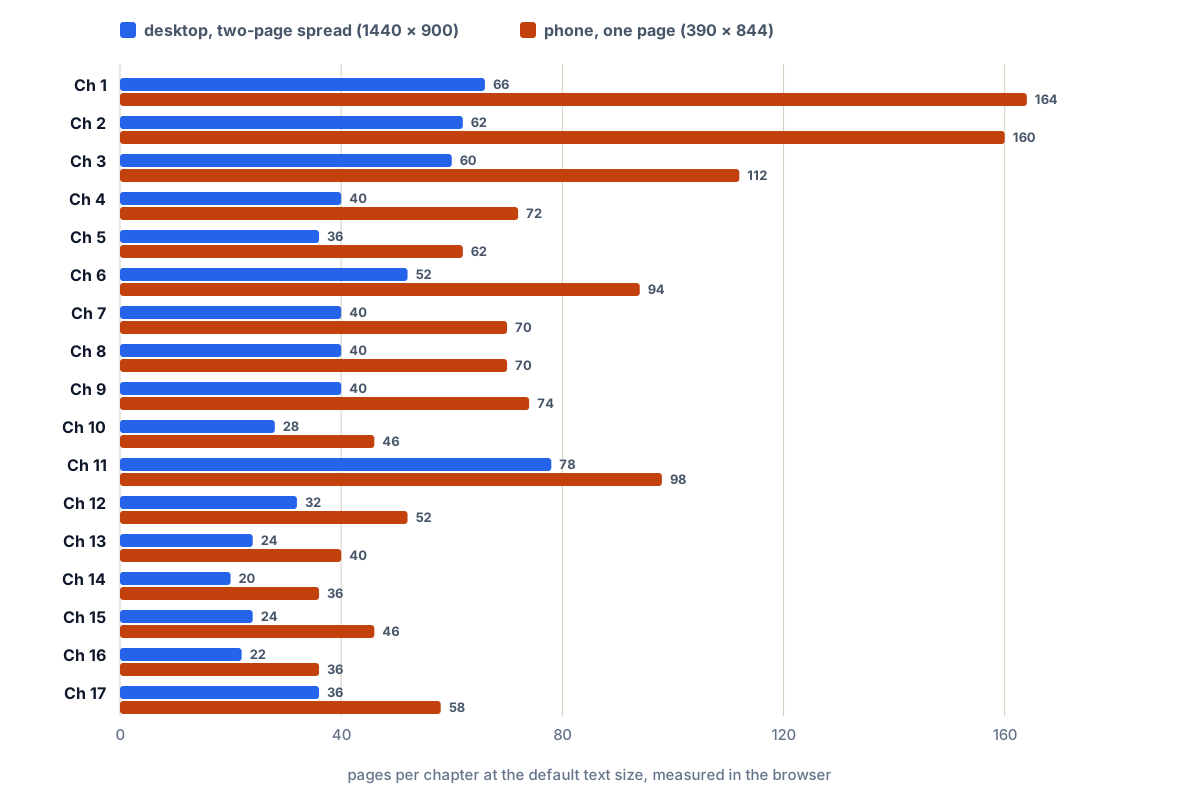
Figure 1. Pages per chapter at the default text size. A desktop spread shows two pages at a time; a phone shows one, smaller page.
| Measure | Desktop (1440 × 900) | Phone (390 × 844) |
|---|---|---|
| Total pages | 700 | 1,290 |
| Longest chapter | 78 pages | 164 pages |
| Load and paginate, average | 0.17 s | 0.21 s |
| Load and paginate, slowest | 0.33 s | 0.45 s |
Under half a second on a phone for the longest chapter is fast enough that nobody waits. Changing the text size or rotating the screen repaginates and keeps you in the same section.
The page turn
The page-turn effect comes from a small open-source library, page-flip. It takes a list of page elements and handles the curl, the shadows, dragging a corner, and single or double page layouts. It respects reduced-motion settings. I chose it because it works on plain elements I already have, instead of asking me to render pages into a canvas.
Fullscreen that survives the next chapter
The first version had an annoying flaw. You read a chapter in fullscreen, turned the last page, and the next chapter opened as a new page load. Browsers end fullscreen on navigation, so you were thrown out of it every chapter.
The fix was to stop navigating. When you move to the next or previous chapter, the reader:
- fetches the next chapter’s HTML in the background,
- parses it and takes four regions from it: the contents drawer, the navigation, the breadcrumbs and the chapter itself,
- swaps them into the current page and updates the address bar and title,
- tears down every listener from the old chapter in one call, and paginates the new one.
In tests across every chapter boundary, forwards and backwards, this produced zero full page loads and fullscreen stayed on. Going back one page from the start of a chapter opens the previous chapter at its last page, as a book should. The browser’s back button still works, and a plain link still opens a normal page if JavaScript is off.
Teardown matters more than it looks. Every listener the reader adds is tied to one abort signal per chapter. Aborting it removes them all, so a long reading session does not pile up duplicate key handlers.
A front page you can always reach
A printed book has a cover and a contents page, and you can always flip back to them. The reader now has the same: a front page with the cover, a short page on why the book is called what it is, and the contents. It is one tap away from every chapter, and it opens inside the reader, so fullscreen stays on there too.
What it costs
The book reader is about 56 KB of JavaScript on chapter pages, on top of the 10 KB the rest of the site uses. Pages that are not book chapters do not load it at all. Like everything else here, it runs under a strict policy that allows no inline scripts at all.
Try it on any chapter of the book: pick Book in the reader bar, then press F for fullscreen.